
Subaru Ascent 2018-2026 Owner's Manual: How to select items on the screen
ON/OFF setting
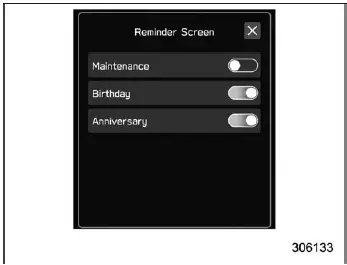
Example
Within the Subaru Ascent interface, settings can be easily enabled or disabled
by touching the corresponding option and selecting ON
 or OFF
 .
This intuitive toggle system allows for quick adjustments without navigating through
complex menus.
.
This intuitive toggle system allows for quick adjustments without navigating through
complex menus.
Selecting
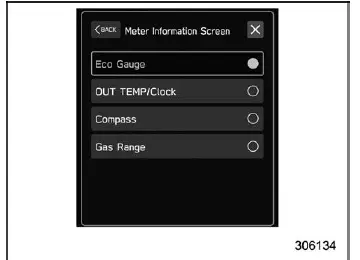
Example
To choose a specific option on the Subaru Ascent display, simply tap the desired item on the screen. The system responds immediately, providing a smooth and user-friendly interaction experience.
How to set items on the screen
Brightness/Contrast
The Subaru Ascent allows precise adjustment of display brightness and contrast to ensure optimal visibility under different lighting conditions, whether driving at night or in bright sunlight.
NOTE
The "Brightness" parameter can only be adjusted when the "Brightness Dial" function is turned off.
1. Touch
 (HOME).
2.

 (Settings)
3.
 "General"
4.
 "Display"
5.
 "Brightness/Contrast"
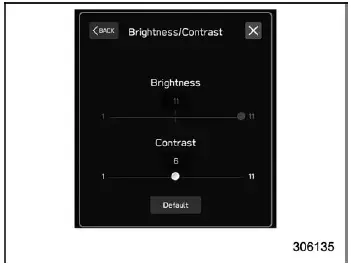
6. Drag
 to adjust the brightness and contrast levels according to your preference.
Touch "Default" to restore the original factory settings.
Favorite Widgets
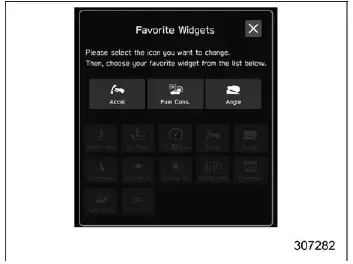
The Subaru Ascent allows the content of the favorite screen to be fully customized, enabling quick access to frequently used information and features.
1. Touch
 (HOME).
2.

 (Settings).
3.
 "General".
4.
 "Favorite Widgets".
5. Select the icon corresponding to the desired display position.
6. Choose the information item you want to display.
Birthday List
In the Subaru Ascent, the system can remind you of upcoming birthdays or anniversaries by displaying a notification when the ignition switch is turned to the "ON" position. This feature can be activated or deactivated via the "Reminder Screen" settings.
1. Touch
 (HOME).
2.

 (Settings).
3.
 "General".
4.
 "Birthday List".
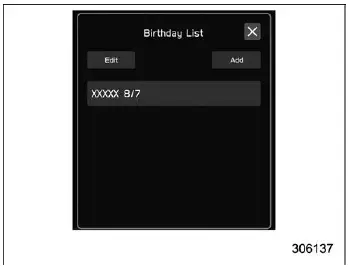
5.
 "Add".
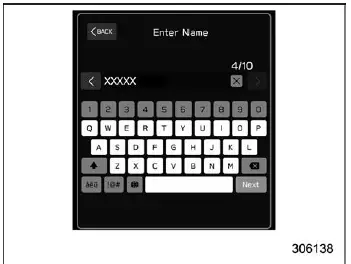
6. Enter the name.
7.
 "Next".
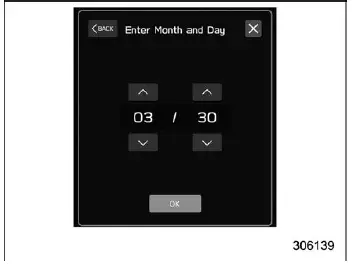
8. Enter the date.
9.
 "OK".
"OK".
NOTE
The Subaru Ascent system allows storing up to five birthday entries.
Anniversary List
The procedure for registering anniversaries in the Subaru Ascent is identical to the Birthday List setup, with the exception that "Anniversary List" is selected instead of "Birthday List" in step 4.
Driver Monitoring System (if equipped)
The Subaru Ascent Driver Monitoring System settings can be customized to enhance safety and driver awareness.
To configure the following options, refer to the ON/OFF setting procedure described above:
- Driver Monitoring System
- User Recognition
- Automatically Retract Seat on Entry
Repeat Facial Scan:
1. Touch
 (HOME).
2.

 (Settings).
3.
 "Car".
4.
 "Driver Monitoring System".
5.
 "Repeat Facial Scan".
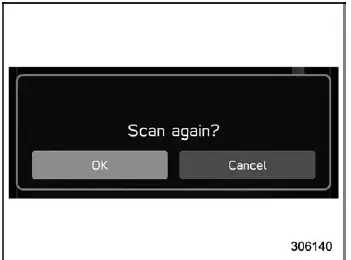
6.
 "OK".
"OK".
7. While seated in the driver’s seat of the Subaru Ascent, look straight ahead and remain still for a few moments while the system performs the scan.
Once the scan is successfully completed, a confirmation screen will appear on the display.
Register User:
1. Adjust the seat position, outside mirror angle, and reverse tilt-down mirror settings to ensure a proper and comfortable driving posture in the Subaru Ascent.
NOTE
- Begin the registration process only after completing all seating and mirror adjustments, as changes made during registration may interrupt or invalidate the process.
- If the ignition switch is turned to the "OFF" position before registration is completed, the configured seat and mirror positions will not be saved.
2. Touch
 (HOME).
3.

 (Settings).
The Subaru Ascent interface is designed to simplify even complex personalization tasks, allowing drivers to configure settings quickly and intuitively while maintaining full control over vehicle comfort and safety systems.
4.
 "Car".
5.
 "Driver Monitoring System".
6.
 "Register User".
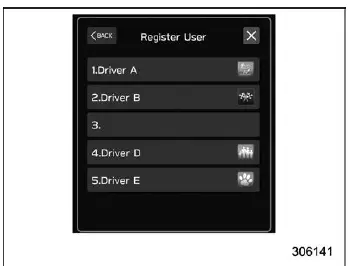
7. Select the desired user profile from the available list displayed on the Subaru Ascent screen.
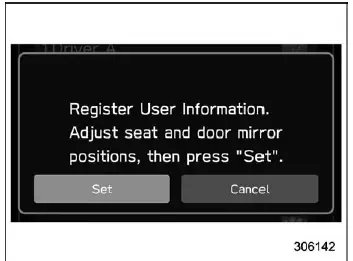
8.
 "Set".
9. While seated correctly in the driver’s seat of the Subaru Ascent, look straight ahead and remain still for a few seconds while the system captures facial data.
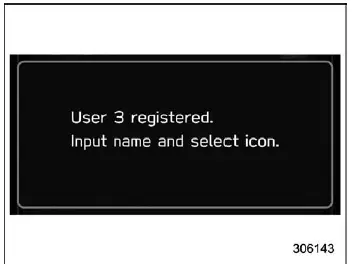
Once the display changes, the facial recognition registration process in the Subaru Ascent is successfully completed.
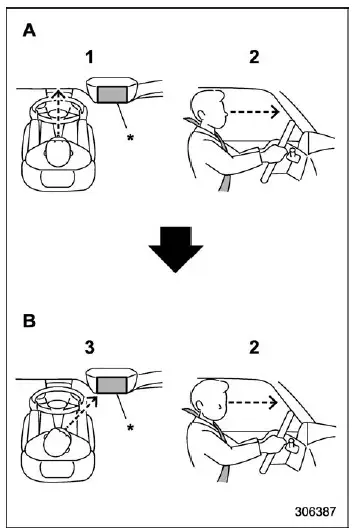
- Forward direction
- Display direction
- Keep your face directed forward.
- Avoid lowering your chin during the scan.
- Gradually turn your face toward the display as instructed.
*: Display
NOTE
- If user registration in the Subaru Ascent is unsuccessful, ensure your face is aligned forward as illustrated, then slowly turn toward the display for proper detection.
- In certain conditions, registration accuracy may be affected. In such cases, refer to the "Driver Monitoring System" section for troubleshooting.
- If the message "Unable to register. Try again." appears, repeat the procedure starting from step 5.
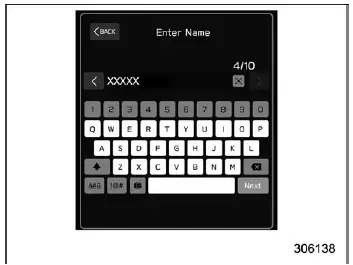
10. Enter the user name.
11.
 "Next".
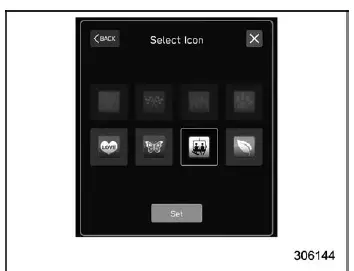
12. Choose the preferred profile icon.
13.
 "Set".
NOTE
- An existing user profile in the Subaru Ascent can be replaced by selecting
the corresponding registered slot.
When a profile is overwritten, previously stored individual fuel economy data will be reset.
- If the "User Recognition" feature is disabled, the user registration function will not be available.
Update Seat and Mirror Position:
1. Touch
 (HOME).
2.

 (Settings).
3.
 "Car".
4.
 "Driver Monitoring System".
5.
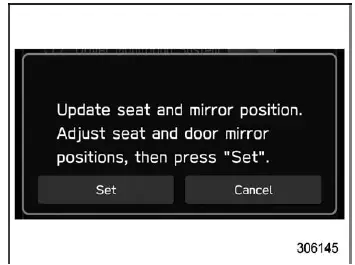
 "Update Seat and Mirror Position".
6.
 "Set".
NOTE
- Before updating driver settings in the Subaru Ascent, ensure that seat position, mirror angles, and reverse tilt-down settings are fully adjusted. Changes made during registration may interrupt the process.
- If the ignition is turned off before completing the procedure, the updated settings will not be stored.
Delete Driver Position:
1. Touch
 (HOME).
2.

 (Settings).
3.
 "Car".
4.
 "Driver Monitoring System".
5.
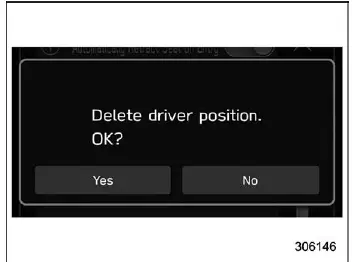
 "Delete Driver Position".
6.
 "Yes".
Delete User:
1. Touch
 (HOME).
2.

 (Settings).
3.
 "Car".
4.
 "Driver Monitoring System".
5.
 "Delete User".
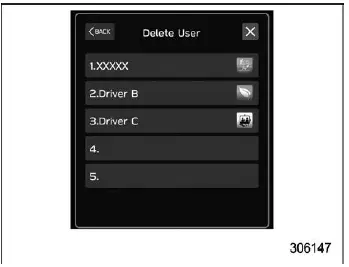
6. Select the desired user profile to remove.
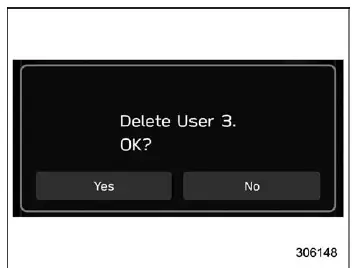
7.
 "Yes"
"Yes"
Delete All Users:
1. Touch
 (HOME).
2.

 (Settings).
3.
 "Car".
4.
 "Driver Monitoring System".
5.
 "Delete All Users".
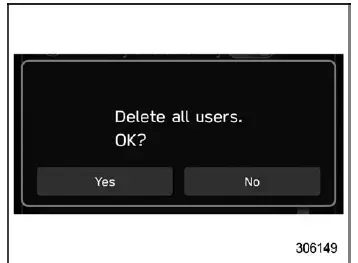
6.
 "Yes"
"Yes"
The Subaru Ascent personalization system is designed to provide seamless user recognition and adaptive comfort, ensuring that every driver experiences a tailored environment from the moment they enter the vehicle.
 Main screen
To access the main screen in the Subaru Ascent, simply touch
(HOME). This action instantly brings up the central interface, where all primary
vehicle systems and settings are organized for q ...
 Car information screen
1. Touch
(HOME) to open the main menu of the Subaru Ascent system interface.
2.
(Car Info)
Driving Statistics screen
Driving Statistics
Steering angle
Running condition
Veh ...
Other materials:
Note
LIGHTING SYSTEM > Interior Light SystemNOTEFor operation procedures of each component of the interior light system, refer to the respective section.• Spot map light: Spot Map Light">• Room light: Room Light">• Luggage room light: Luggage Room Light">&b ...
Dtc p0014 "b" camshaft position - timing over-advanced or system performance bank 1
ENGINE (DIAGNOSTICS)(H4DO) > Diagnostic Procedure with Diagnostic Trouble Code (DTC)DTC P0014 "B" CAMSHAFT POSITION - TIMING OVER-ADVANCED OR SYSTEM PERFORMANCE BANK 1DTC detecting condition:Detected when two consecutive driving cycles with fault occur.Trouble symptom:• Engine sta ...
Removal
ENTERTAINMENT > Rear Accessory Power Supply SocketREMOVAL1. Disconnect the ground cable from battery and wait for at least 60 seconds before starting work. NOTE">2. Remove the console box assembly. Console Box > REMOVAL">3. Remove the socket assembly.(1) While releasing the c ...
