
Subaru Ascent 2018-2026 Owner's Manual: How to change the display of Surround View Monitor
When the ignition of the Subaru Ascent is in the "ON" position, the system can be operated using the select lever and the view monitor switch to display various camera angles.
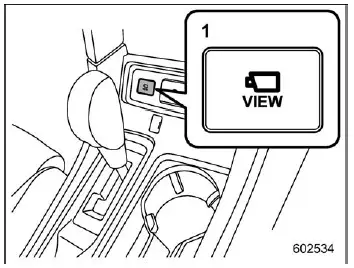
- View monitor switch
- View icon
Checking your surroundings while the vehicle is stopped
To activate a 3D view of the surroundings in the Subaru Ascent, press the view monitor switch while the select lever is in the "P" position.
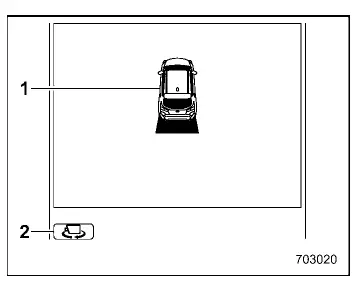
- Vehicle icon
- Vehicle angle icon
In 3D view mode, the Subaru Ascent display rotates through different viewing angles automatically. Once it returns to the original position, the rotation stops. You can also manually change the angle by selecting the vehicle angle icon on the screen.
NOTE
The Subaru Ascent system remembers the last selected viewing angle. The next time the monitor is activated, it will display the previously used angle.
Checking the rearward
When the gear selector is shifted to "R", the Subaru Ascent automatically displays the rear camera view.
Pressing the view monitor switch or tapping the view icon allows switching between different rear display modes.
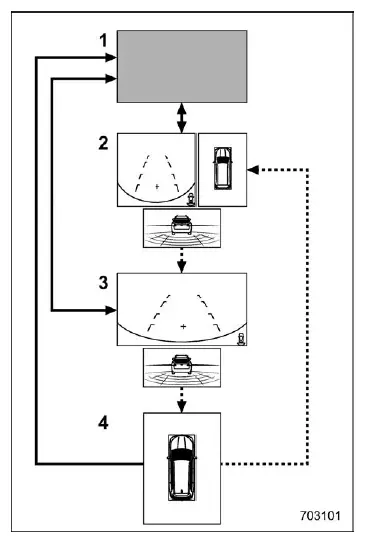
- Original screen
- Rear view screen/Top view screen/Reverse Automatic Braking (RAB) screen
- Rear view screen/Reverse Automatic Braking (RAB) screen
- Top view screen
 Shift the select lever.
 Touch the view icon or press the view monitor switch.
NOTE
- The Subaru Ascent remembers the last display mode used. When reactivated, the same screen will appear, except in specific cases such as top view mode resetting to rear view.
- If "Rear Camera Delay Control" is enabled, the rear view remains visible for a short period after shifting out of reverse. This setting can be adjusted through system settings.
Checking the front
When driving the Subaru Ascent in "N" or "D" position, pressing the view monitor switch activates the front camera view.
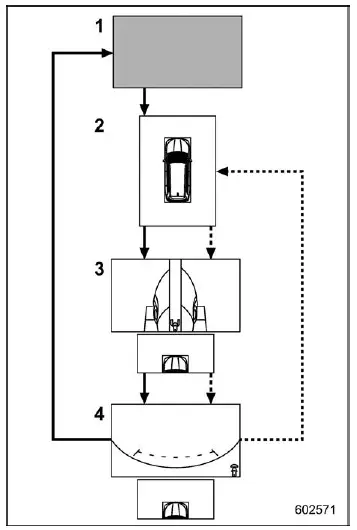
- Original screen
- Top view screen
- Left-side view screen/Right-side view screen/Front-top view screen
- Front view screen/Front-top view screen
 Press the view monitor switch.
 Touch the view icon.
NOTE
The Subaru Ascent Surround View Monitor retains the last selected view, providing a consistent and user-friendly experience each time the system is activated.
The Subaru Ascent advanced camera system enhances safety and convenience by delivering a comprehensive view of the surroundings, making parking, maneuvering, and low-speed driving more controlled and confident.
 Surround View Monitor
The Subaru Ascent is equipped with a Surround View Monitor system that provides
a comprehensive visual overview of the vehicle’s surroundings. This system displays
real-time camera images on the ...
 How to cancel Surround View Monitor
In the Subaru Ascent, the Surround View Monitor can be deactivated in several
intuitive ways, depending on driving conditions and driver preference.
Manual cancellation
You can manually exit the S ...
Other materials:
Caution
EyeSight (DIAGNOSTICS) > General DescriptionCAUTION1. AIRBAG SYSTEMAirbag system wiring harness is routed near the cruise control command switch.CAUTION:• Do not use the electrical test equipment on the airbag system wiring harnesses and connector circuits.• Be careful not to damage t ...
Disassembly
STARTING/CHARGING SYSTEMS(H4DO) > StarterDISASSEMBLYCAUTION:The starter should be placed through a no-load test whenever it has been overhauled.1. Disconnect the cable from the magnet switch assembly.2. Remove the magnet switch assembly from the starter housing assembly.3. Remove screws (A) of th ...
Dtc b2283 vehicle speed sensor
KEYLESS ACCESS WITH PUSH BUTTON START SYSTEM (DIAGNOSTICS) > Diagnostic Procedure with Diagnostic Trouble Code (DTC)DTC B2283 VEHICLE SPEED SENSORDTC detecting condition:Either of the following malfunctions is detected. (Vehicle speed sensor failure is detected.)• Vehicle speed signal failu ...
